For owners and managers

How to run the Acco portal.

Tap-through guide for everything you'll do as an admin. With screenshots of every form.

Open the portal Download PDF See the cleaner guide

What the portal is for

The portal is the back-of-house system for your cleaning business. Cleaners use it on their phones to see their jobs. You use it to add jobs, assign cleaners, and manage your team.

Every staff member needs three things to use it:

  1. An email + password (their login)
  2. A staff account (you create it, or they sign up with a code)
  3. An active access code tied to their role
Where it lives. The portal is at www.accocleaningservice.com/portal-app. Bookmark it.

The three roles

Every account has one role. You can change it anytime.

Cleaner

Cleaner

  • Sees their own jobs only
  • Updates job status
  • Leaves cleaner notes
Manager

Manager

  • Everything a cleaner can do
  • Sees every job in the system
  • Posts new jobs and assigns cleaners
  • Issues cleaner access codes
Admin

Admin

  • Everything a manager can do
  • Creates staff accounts directly
  • Issues manager + admin codes
  • Resets passwords, changes roles, deletes accounts
Safety net. An admin can't demote, disable, or delete their own account. This is on purpose so you never get locked out.
1

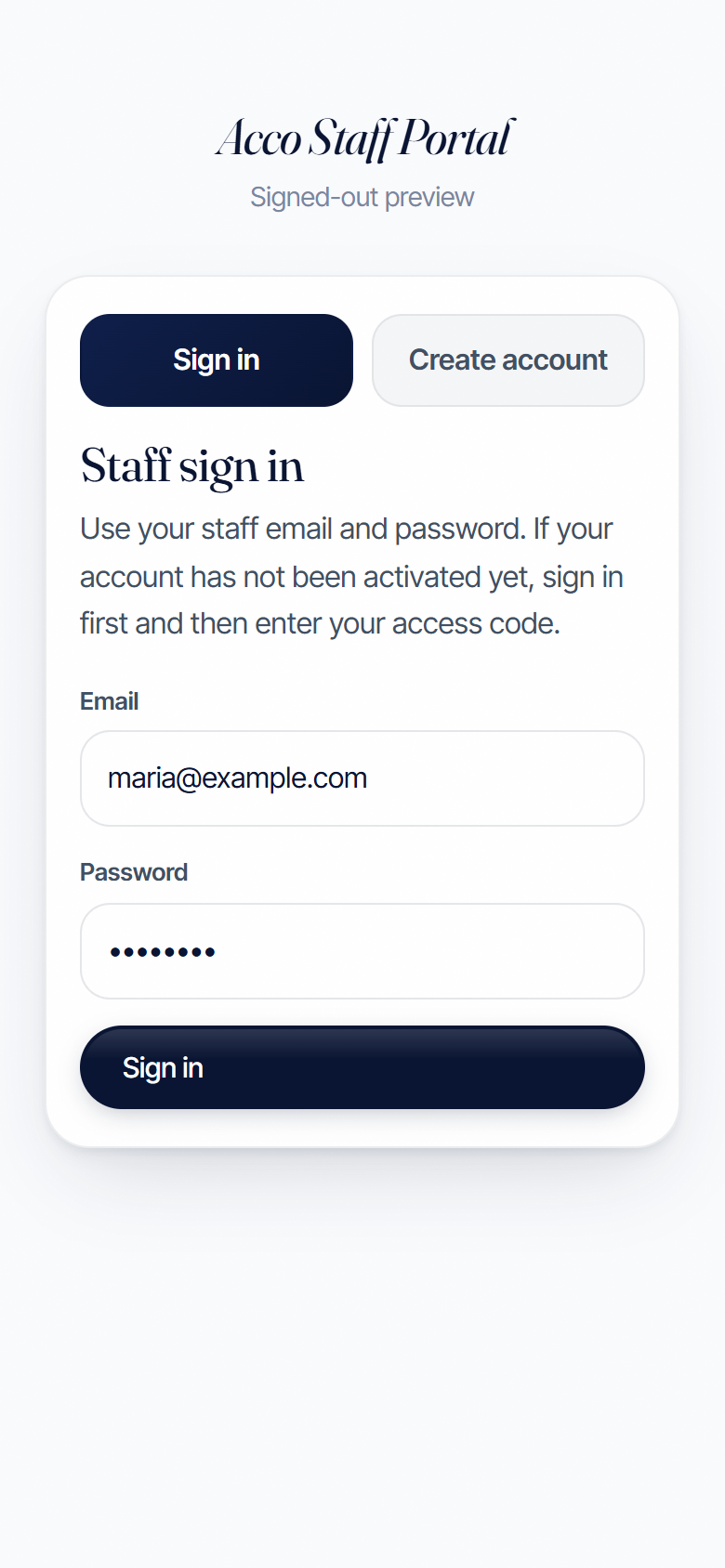
Sign in as admin

Go to www.accocleaningservice.com/portal-app. Type your admin email and password. Tap Sign in.

First time? If this is the very first time anyone has used the portal, you'll need to claim your admin account with the seeded access code. Ask your developer (Cody) for it.
Real screenshot of the staff portal sign-in screen
2

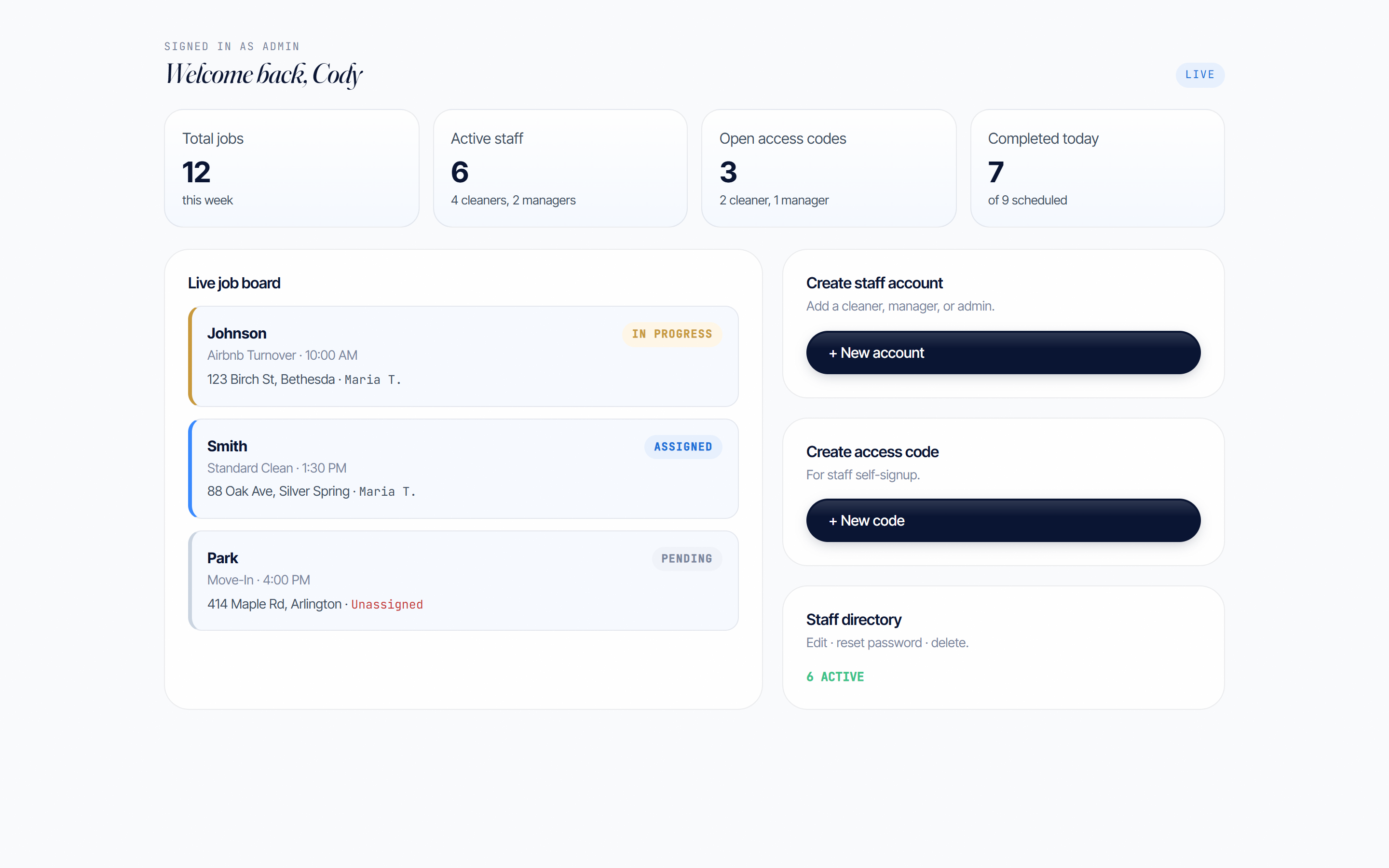
This is your dashboard

Once signed in, you'll see four things:

  1. A stats strip at the top (total jobs, active staff, open codes, jobs done today)
  2. The live job board on the left (every job in the system, color-coded by status)
  3. Your admin tools on the right (create staff, issue codes, staff directory)
  4. The Create and assign a job form above the job board
Real screenshot of the admin dashboard with stats strip, live job board, and admin tools
3

Add a new staff member

Two ways to onboard someone. Pick whichever fits.

Way A — You create their account for them

Best when you have their info handy and want them ready to go.

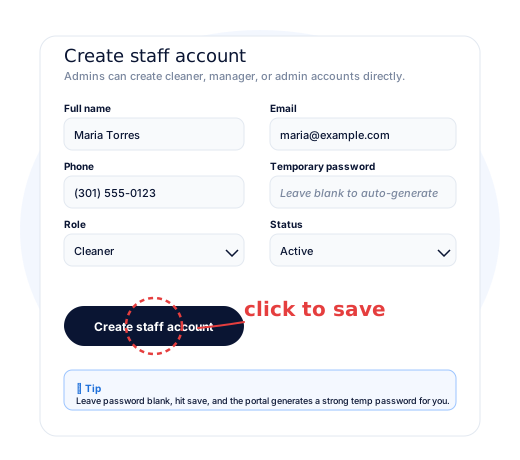
  1. In the right sidebar, find Create staff account.
  2. Type their full name, email, and phone.
  3. Pick their Role (Cleaner for most hires).
  4. Leave Temporary password blank to auto-generate a strong one, or type your own.
  5. Make sure Status is set to Active.
  6. Click Create staff account.
Then text them. "Hi! Your Acco portal login is ready. Email: their-email. Temp password: xxxx. Sign in at www.accocleaningservice.com/portal-app and change your password."

Way B — Hand them an access code and let them sign up

Best when you want them to do the work themselves.

  1. Create a code (see Step 4 below).
  2. Text them the code and the portal link.
  3. They go to Create account, fill in their info, and paste the code.
Create staff account form filled in with name, email, phone, role, and status, with the Create staff account button highlighted
Create access code form with role, label, and notes filled in, plus a copy-ready generated code below
4

Issue an access code

Access codes let new hires sign themselves up. One code = one person.

  1. In the right sidebar, find Create access code.
  2. Pick the Role (Cleaner, Manager, or Admin).
  3. Add a Label for your own tracking (example: "Maria T. cleaner code").
  4. Optional: set an expiration date so the code dies if unused.
  5. Optional: add internal notes.
  6. Click Create code.
  7. Copy the new code and text it to your hire.
Treat codes like keys. Don't post them in group chats. One person, one code.
Managers vs admins. Managers can only create cleaner codes. Only admins can create manager or admin codes.
5

Post and assign a job

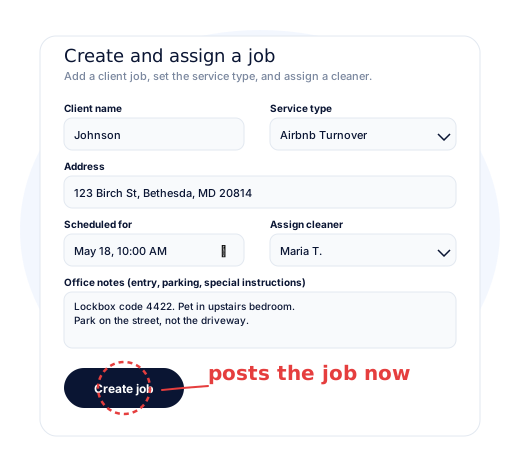
Above the live job board you'll see the Create and assign a job form.

  1. Type the Client name and Address.
  2. Pick the Service type (Residential, Airbnb Turnover, Move-In/Out, Concierge, Commercial).
  3. Pick a date and time.
  4. Pick a cleaner to assign (or leave it unassigned and assign later).
  5. Add Office notes — entry code, parking, anything the cleaner needs.
  6. Click Create job.

Job status meanings

  • Pending — created but not assigned
  • Assigned — given to a cleaner, not started
  • In progress — the cleaner is on site
  • Complete — cleaner finished and submitted
  • Cancelled — you cancelled it
Create and assign a job form filled in with client Johnson, Airbnb Turnover, address, scheduled time, assigned cleaner Maria T., and office notes about a lockbox
6

Edit, reset, or remove staff

The Staff directory in the right sidebar shows every account, with editing tools on each card.

To edit someone

  1. Find them in the Staff directory.
  2. Change name, email, phone, role, or status.
  3. To reset their password: type a new one in the Reset password field (leave blank to keep current).
  4. Click Save account.

To pause someone

Set their Status to Inactive and save. They can't sign in until you switch them back to Active.

To delete someone

Click Delete account. This is permanent. Use Inactive instead if you might bring them back.

You can't delete yourself. Your own admin account is protected. To remove yourself, another admin has to do it.
7

Your typical day

  1. Morning — check the job board. Are all of today's jobs assigned? Anything still Pending?
  2. Post any same-day jobs. Use the Create and assign a job form. Pick the cleaner right away if you know who's going.
  3. Hand out access codes if you're onboarding anyone today.
  4. Watch statuses through the day. Cleaners move jobs from AssignedIn progressComplete. Their notes show up under each job.
  5. End of day — confirm everything closed out. A job still In progress after hours probably needs a follow-up text to the cleaner.
?

If something's not working

A new account shows "Activation required"

They signed up without a valid code, or the code was already claimed. Issue a fresh code, have them sign in and finish activation.

An account shows "Access blocked"

Status was set to Blocked or Inactive. Find them in the Staff directory, switch back to Active, save.

A cleaner can't see a job

Cleaners only see jobs assigned to them. Open the job, change Assigned cleaner to the right person, save.

Someone forgot their password

Open their card, type a new password in Reset password, save. Text them the new one and tell them to change it.

The portal won't load at all

This usually means the backend (Supabase) is not connected yet. Contact Cody for help.

Still stuck?

Call 1 (800) 644-0614 or email booking@accocleaningservice.com.