For the cleaning team

How to use the Acco app.

Tap-through guide with pictures of every screen. Read it once and you're ready to go.

Open the app Download PDF Open the checklists
1

Sign in

Open the link your manager sent you (or go to www.accocleaningservice.com/portal-app).

  1. Type the email your manager has on file.
  2. Type your password.
  3. Tap the dark Sign in button.
Pro tip. When your phone asks "Save this password?", say Yes. Next time you can sign in with one tap.
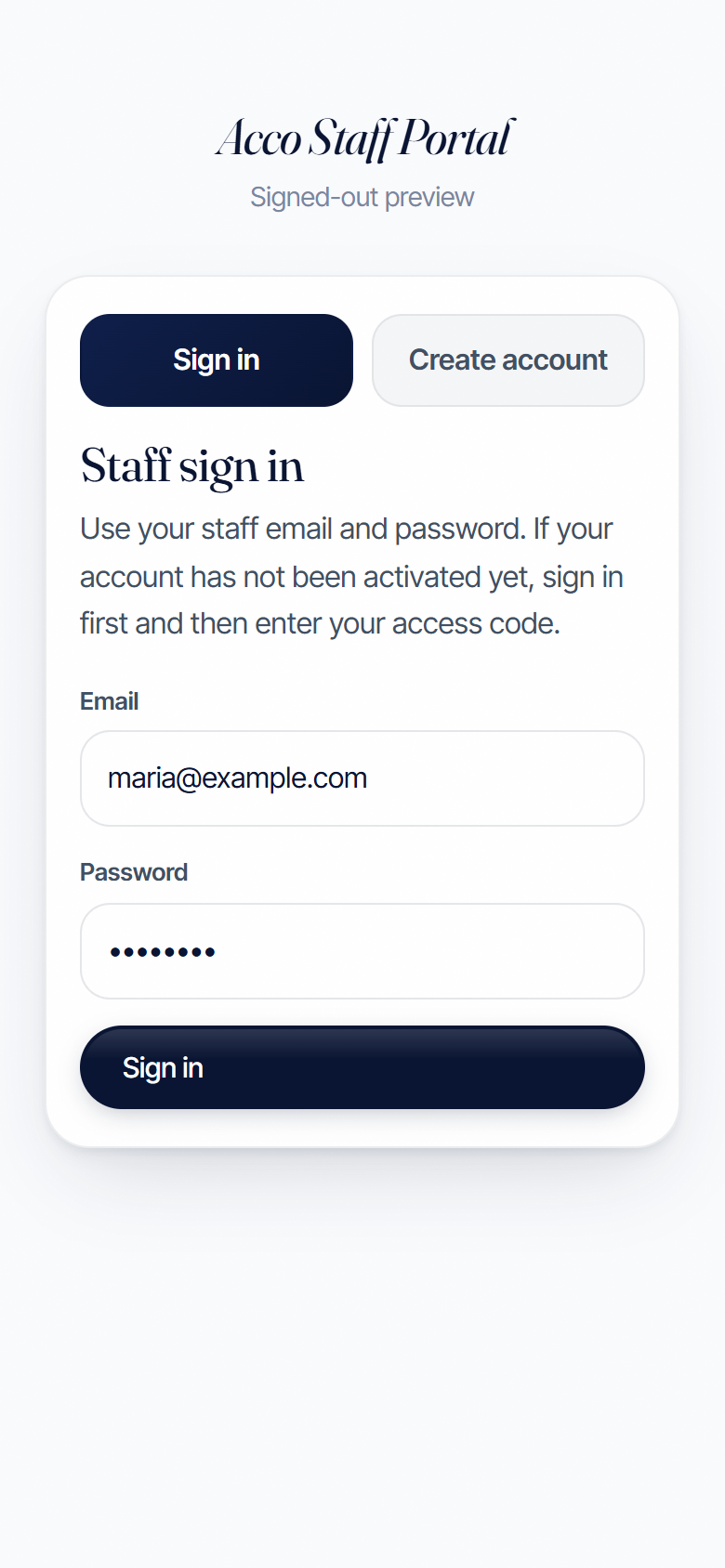
Real screenshot of the Acco staff portal sign-in screen with email and password fields
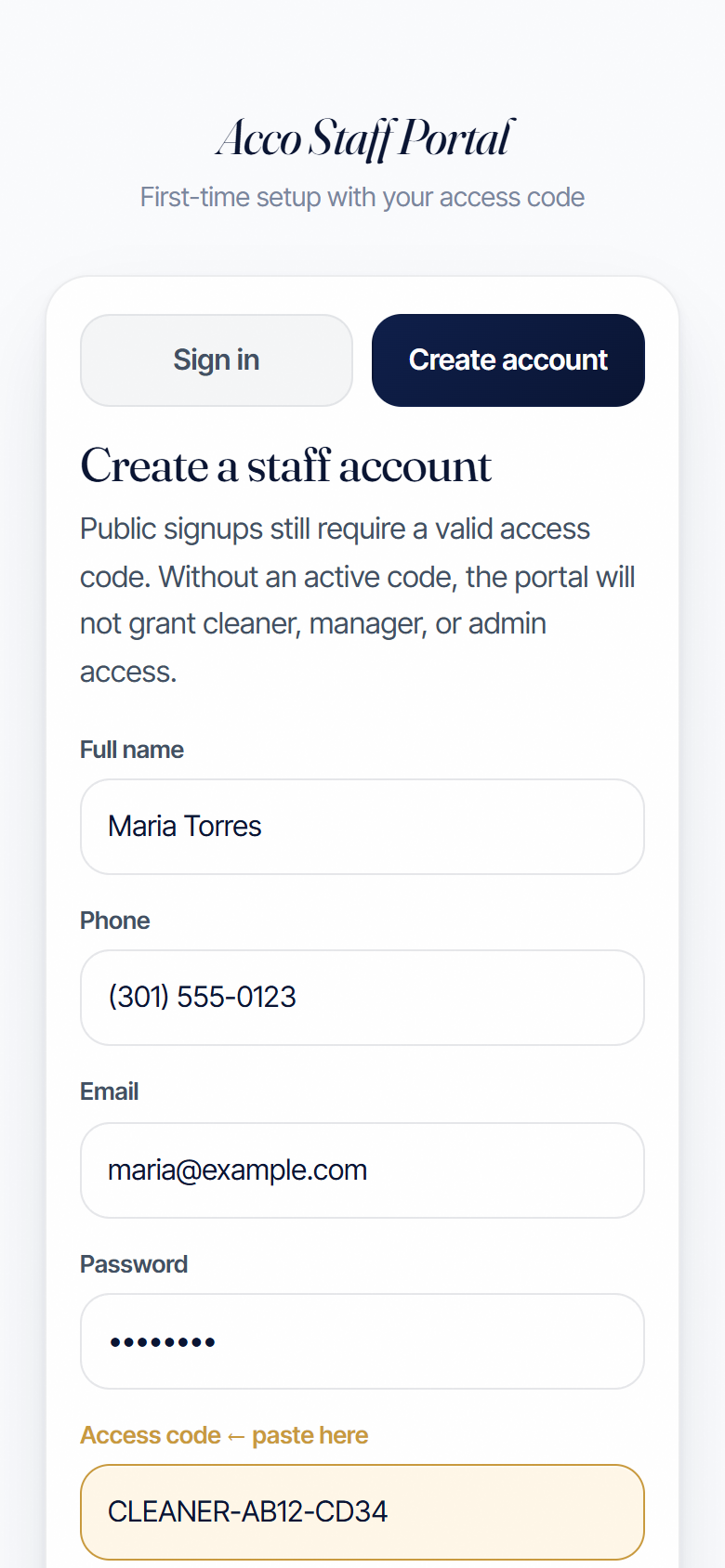
Real screenshot of the Create account screen with the access code field highlighted in gold
2

First time? Use your code.

If your manager sent you an access code (it looks like CLEANER-AB12-CD34), use the Create account tab.

  1. Tap Create account at the top.
  2. Type your full name, email, and a password (8 characters or more).
  3. Paste your access code into the highlighted box.
  4. Tap Create account and activate.
Heads up. The code only works once. Use it on the very first sign-up.
3

Save it to your phone

Put the app on your home screen so it's always one tap away. No App Store needed.

On iPhone (Safari):

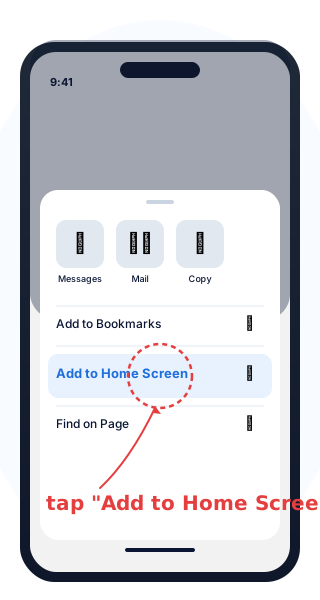
  1. Tap the Share button at the bottom (the square with an arrow up).
  2. Scroll down and tap Add to Home Screen.
  3. Tap Add in the top right.
Done! The Acco icon will appear on your home screen like a real app.
iPhone Safari Share menu with Add to Home Screen highlighted in red
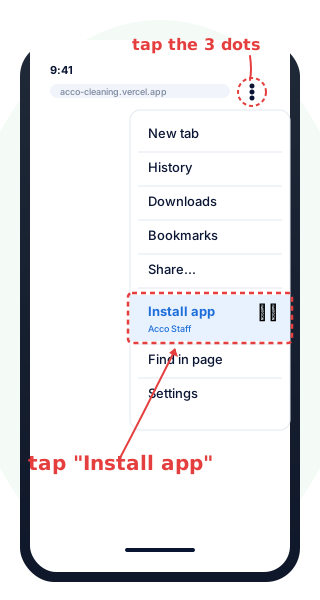
Android Chrome menu showing the Install app option highlighted in red
3

...or on Android

Same idea, slightly different menu:

  1. Open the app link in Chrome.
  2. Tap the three dots in the top right.
  3. Tap Install app (some phones say "Add to Home screen").
  4. Tap Install.
Done! The Acco icon will appear on your home screen.
4

See today's jobs

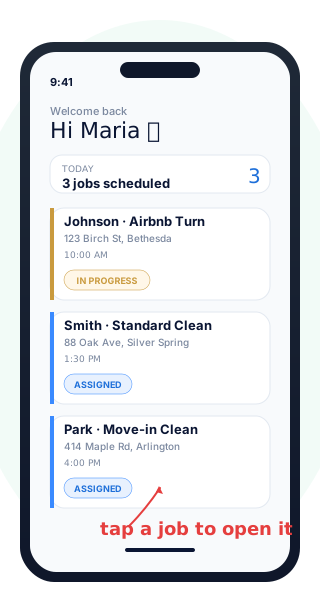
After you sign in, you'll see a list of jobs assigned to you.

Each card shows:

  • The client name and service type
  • The address
  • The scheduled time
  • The current status (Assigned, In progress, or Complete)

Tap any job to open it.

Only your jobs. You only see work assigned to you. If a job is missing, message your manager and they'll assign it.
Phone home screen showing three job cards for today: Johnson (in progress), Smith (assigned), Park (assigned)
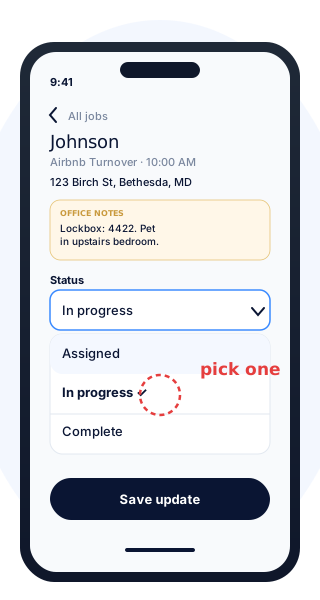
Open job card showing the status dropdown with Assigned, In progress (selected), and Complete options
5

Update your status as you work

Three statuses. Move through them in order.

Step aAssigned

You haven't started yet.

Step bIn progress

You've arrived and started cleaning.

Step cComplete

You finished and did a walkthrough.

How to update:

  1. Tap the job card to open it.
  2. Tap the Status dropdown.
  3. Pick the right one.
  4. Tap Save update.
Why this matters. Your manager and the office see your update right away. Keeps everyone on the same page.
6

Leave a note for the office

The Cleaner notes box at the bottom of each job is how you talk to the office. Use it for:

  • Supplies you used up and need refilled
  • Damage or problems at the property
  • Running late or finished early
  • A guest left something behind
  • Anything else the team should know

To leave a note: open the job, type into the Cleaner notes box, tap Save update.

Keep it short. One or two sentences is enough. Just enough so the office knows what happened.
Job card with the cleaner notes area visible at the bottom
Illustration of a freshly turned-over bedroom with crisp linens and sparkles
7

Use the checklists on every job

The portal links to two printable checklists. Open them on your phone or print a copy for the caddy.

Tap items off as you finish. Your progress saves on your phone. Tap Reset for a fresh list on the next job.

Acco standards. Right cloth for the right area (no cross-contamination). Let products sit 30 to 60 seconds before wiping. Work top to bottom, left to right.
?

If something goes wrong

The most common situations and what to do.

I can't sign in

Check the email is the one your manager has on file. If the password isn't working, ask your manager to reset it for you.

It says "Activation required"

You signed up without a valid access code. Ask your manager for a fresh code, sign in, then paste it into the activation screen.

It says "Access blocked"

Your account is paused. Message your manager and they'll switch you back to active.

A job I expected isn't there

You only see jobs assigned to you. Message your manager and ask them to assign it to your account.

I tapped Complete by mistake

Open the job, change the status back to In progress, tap Save update. Then let your manager know.

Still stuck?

Call 1 (800) 644-0614 or text your manager directly. We'll sort it out.