Sign in
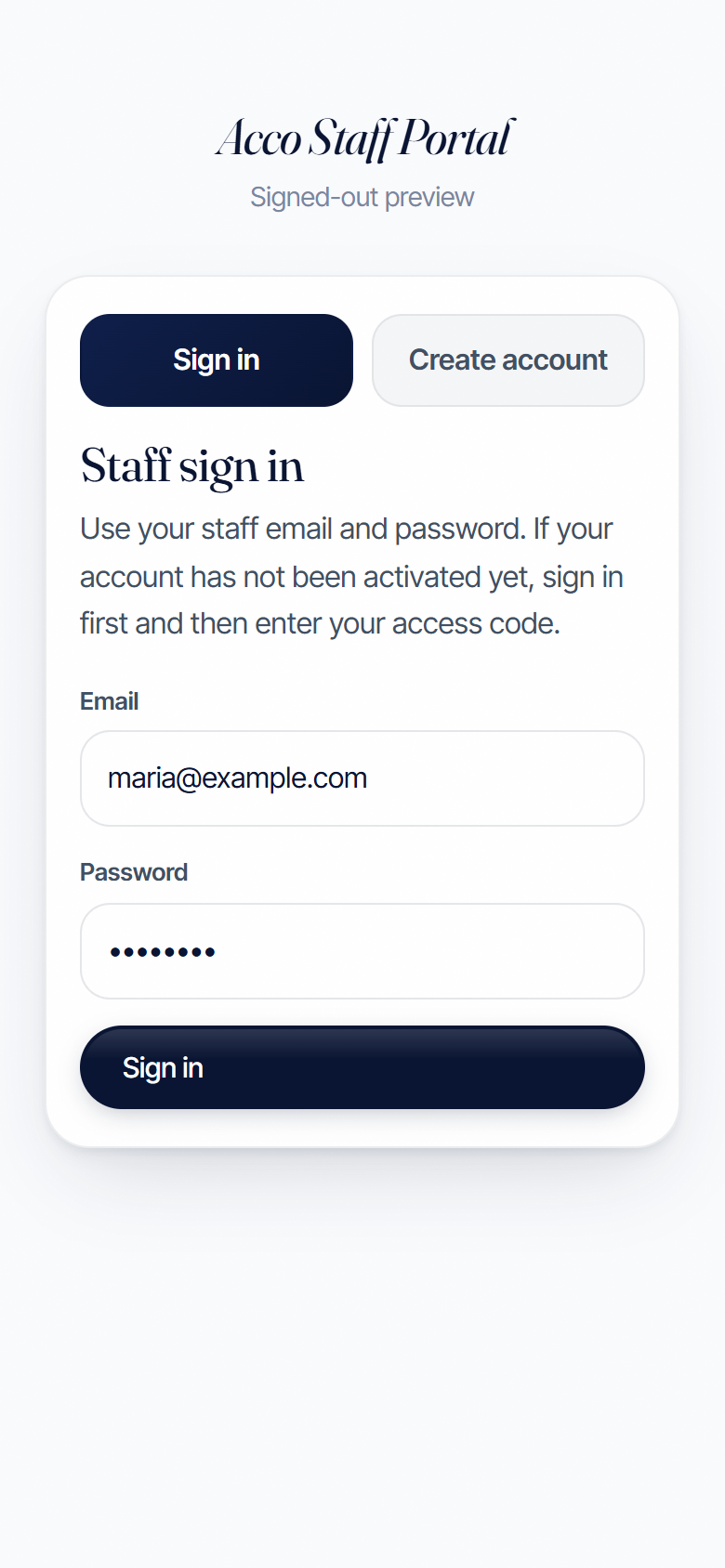
Open the link your manager sent you (or go to www.accocleaningservice.com/portal-app).
- Type the email your manager has on file.
- Type your password.
- Tap the dark Sign in button.

Tap-through guide with pictures of every screen. Read it once and you're ready to go.
Open the link your manager sent you (or go to www.accocleaningservice.com/portal-app).


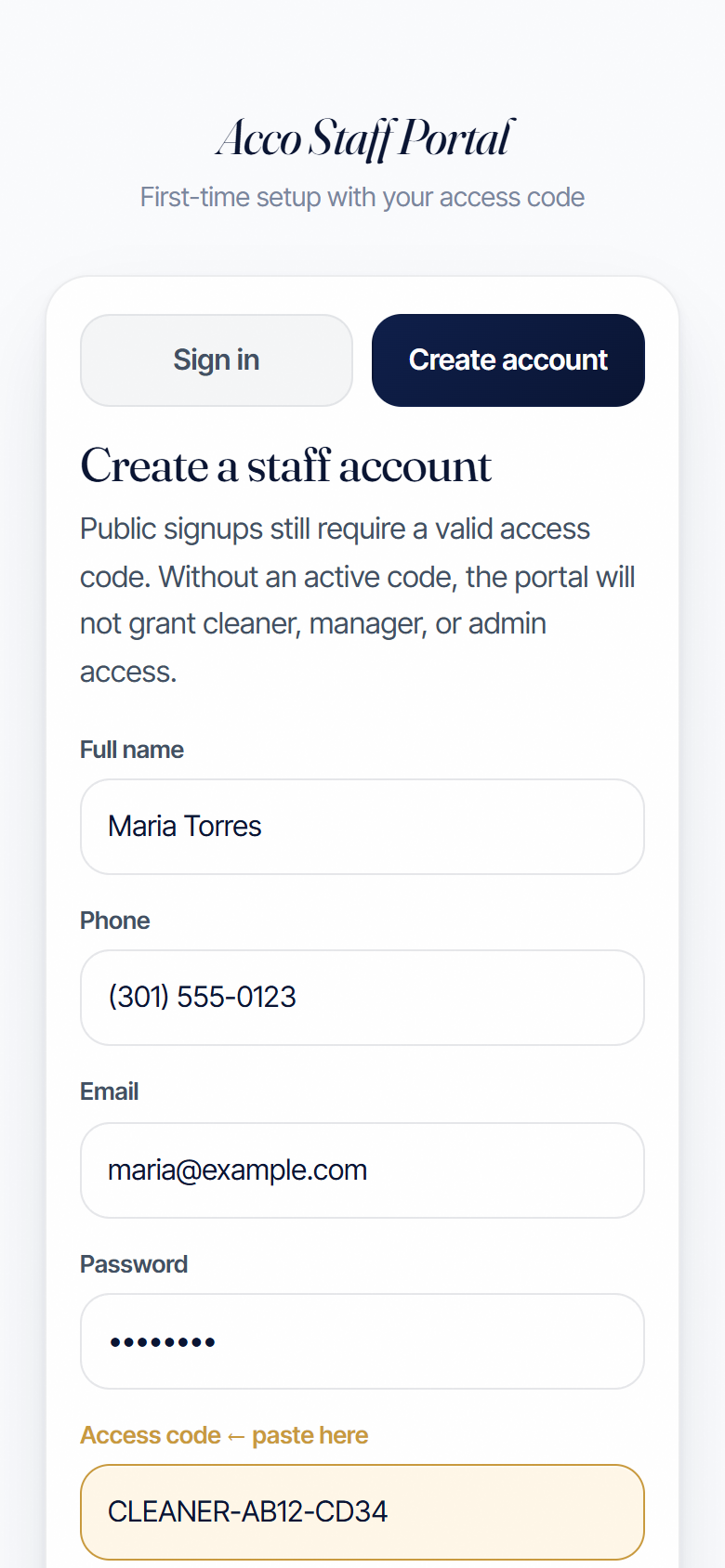
If your manager sent you an access code (it looks like CLEANER-AB12-CD34), use the Create account tab.
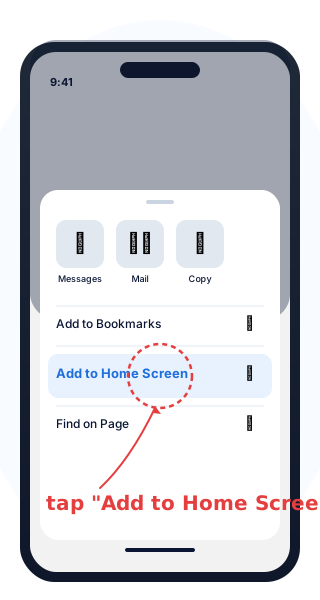
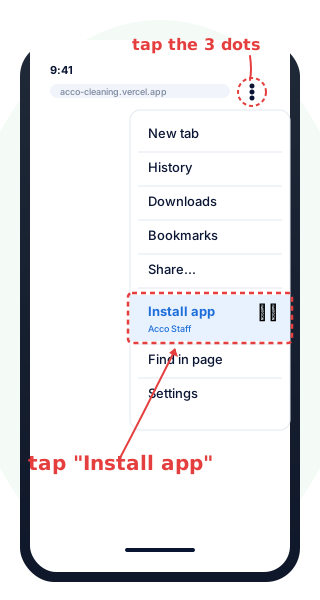
Put the app on your home screen so it's always one tap away. No App Store needed.
On iPhone (Safari):
Same idea, slightly different menu:
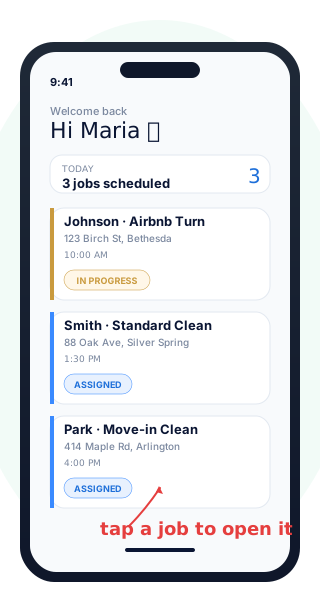
After you sign in, you'll see a list of jobs assigned to you.
Each card shows:
Tap any job to open it.
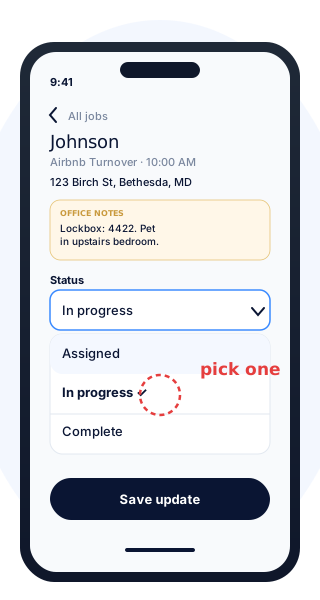
Three statuses. Move through them in order.
You haven't started yet.
You've arrived and started cleaning.
You finished and did a walkthrough.
How to update:
The Cleaner notes box at the bottom of each job is how you talk to the office. Use it for:
To leave a note: open the job, type into the Cleaner notes box, tap Save update.
The portal links to two printable checklists. Open them on your phone or print a copy for the caddy.
Tap items off as you finish. Your progress saves on your phone. Tap Reset for a fresh list on the next job.
The most common situations and what to do.
Check the email is the one your manager has on file. If the password isn't working, ask your manager to reset it for you.
You signed up without a valid access code. Ask your manager for a fresh code, sign in, then paste it into the activation screen.
Your account is paused. Message your manager and they'll switch you back to active.
You only see jobs assigned to you. Message your manager and ask them to assign it to your account.
Open the job, change the status back to In progress, tap Save update. Then let your manager know.
Call 1 (800) 644-0614 or text your manager directly. We'll sort it out.